![3PL Logo White.png]](https://kb.3p-logistics.co.uk/hs-fs/hubfs/3PL%20Logo%20White.png?height=40&name=3PL%20Logo%20White.png)
Open Fusion Toolbar

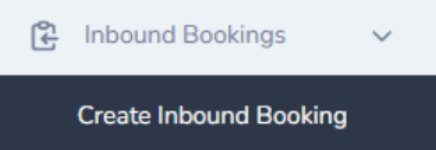
Inbound Booking>Create Inbound Booking
You will see a list of your raised GRNs
Press 'Select' button next to the reference to auto populate the GRN Reference field on the right-hand side of the page
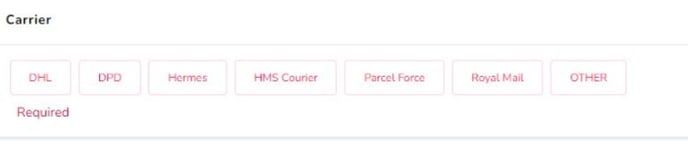
Select a carrier, if none of the options listed are applicable then select OTHER and fill in the field below to let us know who is delivering
Select a transit type
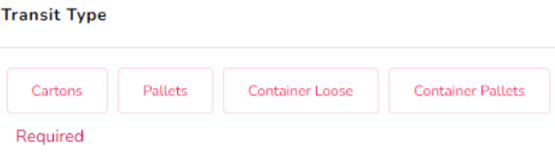
Cartons/Pallets - these are shipments which are 9 pallets or less in total, we ask for at least 48 hours' notice to book these in
Container Loose/Container Pallets - these are shipments which are 10 pallets or more, we ask for at least 5 working days' notice to book these in
Cancel inbound booking
Select View Inbound Bookings
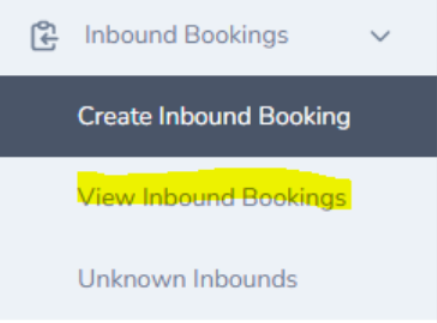
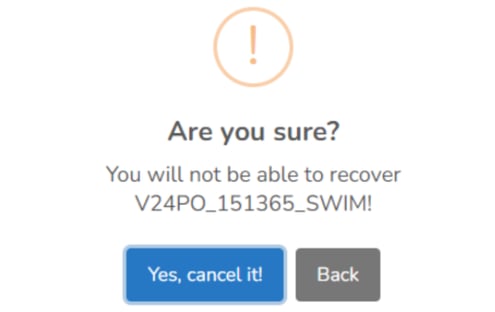
Then select the bin icon

The below will appear
Check Inbound
View GRN>Search GRN reference>Check Status
Due in = Not Arrived
In Progress = Currently being worked on
Once completed, you can view the expected vs received which will show you if there are any variances which can then be checked with supplier by selecting the eye icon
How to Amend Inbound Booking
If you need to amend an inbound booking, you will need to first cancel the inbound booking and then rebook this accordingly.
3PL can not accept an inbound without an inbound booking prior to delivery.