![3PL Logo White.png]](https://kb.3p-logistics.co.uk/hs-fs/hubfs/3PL%20Logo%20White.png?height=40&name=3PL%20Logo%20White.png)
If you need to place a rework, there are steps which must be taken
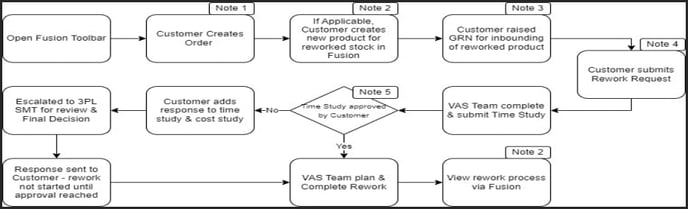
3PL have a VAS Team who work to make the most out of our customer's stock. If a customer needs to place an order for rework, there are steps which must be taken
To start, Open the Fusion Toolbar
Note 1 - Create Order
Place an order for the stock that is required to be re-worked. 3PL need a record of this stock being taken from it's location to be re-worked (Note - RED cells must be completed)
Click the symbol in the top left of the screen then from the dashboard select create single order
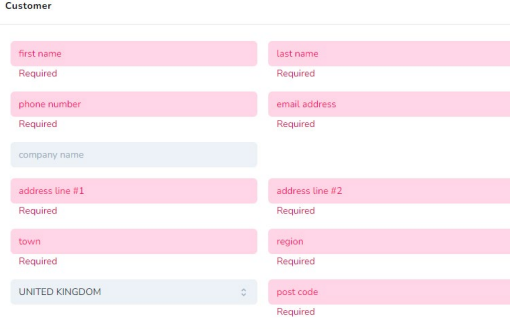
Complete the customer section :
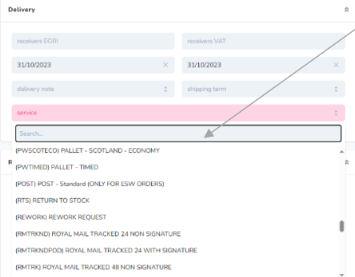
Complete the Delivery section
Select (REWORK) REWORK REQUEST from the 'Service' drop down menu (ensure the service used for this is 3PL_REWORK)
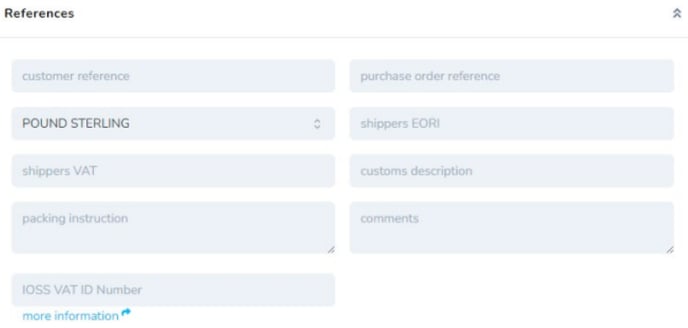
Add text (where applicable) to the References section
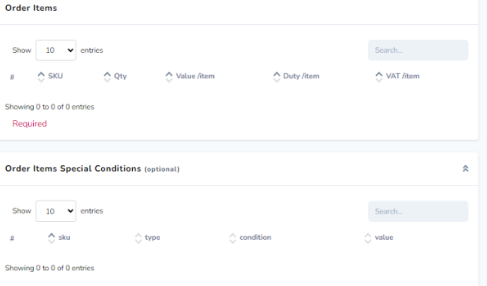
Complete the sections 'Order Items' and 'Order Items Special Conditions' (Optional) if relevant to the request. You may need to place the order against stock in a certain status, depending on the contextual situation of why the rework is taking place. For example, if you have stock that is in a Held status due to an incorrect label, you will need to place the order against held stock. This can be selected in the 'Order Items' area.
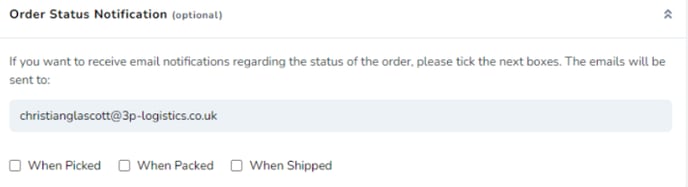
Finally complete the section if required. Check the boxes detailing when notification is required, and ensure the email address to be notified is entered. Once complete click the submit order tab
Note 2 - Create the new product in Fusion - This is only applicable if the product has not already been created by the customer or is already an existing product
The reworked stock needs to have a new SKU and barcode as an identifier that the stock has been altered
Note - RED cells must be completed
Click the symbol in the top left of the screen then select Products and then Create Product
Complete the customer section:
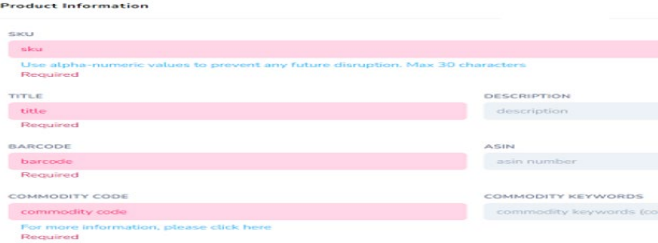
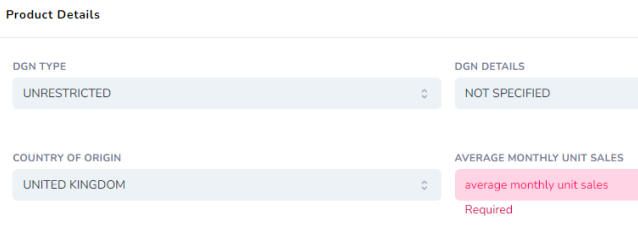
Enter the product details :
Enter weights and dimensions :
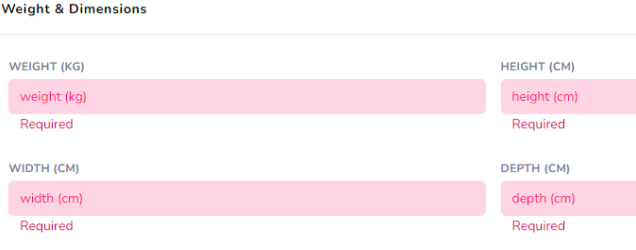
Add the value of the currency to the section :

Where applicable, update the quantities section :

Where applicable, complete the Extras section , then click create product tab

Note 3 - Raise a GRN for the reworked stock to be receipted against (Note - RED cells must be completed)
Click the symbol in the top left of the screen, select GRN then Create GRN
Complete the ASN cell. This is a reference unique number created by the customer

Complete the GRN items section if required
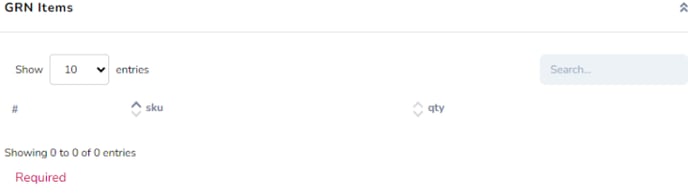
Check the box if notification is required relating to the GRN

Note 4 - Raise a re-work request (Note- RED cells must be completed)
Click the symbol in the top left of the screen. Select Reworks then Rework Request
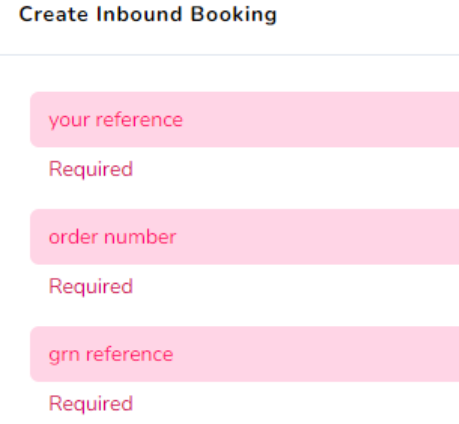
Complete the Create Inbound Booking Section
- Your reference - the reference for the re-work
- Order number - this is the order number which has been raised
- GRN reference - this is the GRN raised against the receipt of the stock once re-worked
Select the re-work type. If the work which you require to be done is not listed, please select OTHER and add to the detailed description box
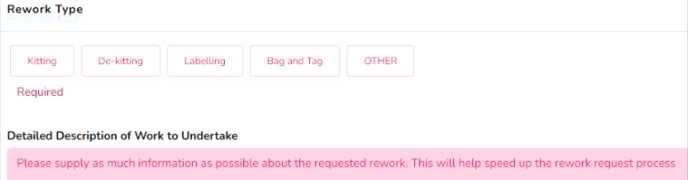
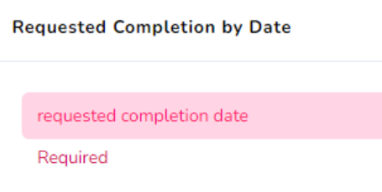
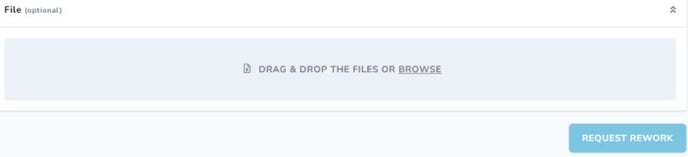
Request a desired completion date for the re-work. The team will do their best to accommodate this. Files/documented information can be added at this point
Note 5 - Approve time study
Upon submitting the request for re-work, the VAS team will carry out a time study and add costing to the rework request
To check the progress of the re-work request
Click the symbol in the top left of the screen, select Re-works then View Re-works
This will show the re-work details and the status. Upon time and costing being completed by 3PL, client approval of the study is required
This will be indicated as :

Select the clock icon : 
This will show the results of the 3PL study. Add response if necessary and if agreed click the APPROVE TIME STUDY tab
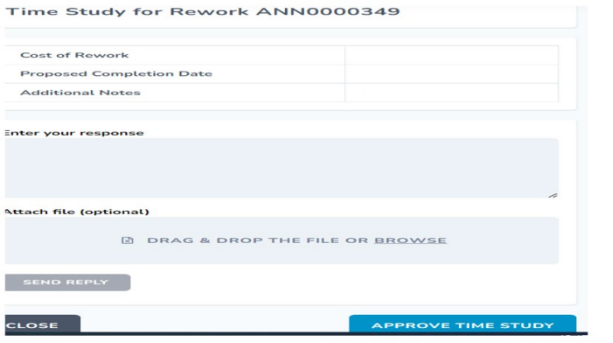
Once this has been approved the 3PL VAS Team will inbound the stock against the GRN and be able to plan the re-work
Note 6 - View re-work progress
Click the symbol in the top left of the screen, select Re-works then View Re-works
This will show current re-works in progress and the status of eac