![3PL Logo White.png]](https://kb.3p-logistics.co.uk/hs-fs/hubfs/3PL%20Logo%20White.png?height=40&name=3PL%20Logo%20White.png)
Creating an order
Create a single order
Open Fusion toolbar

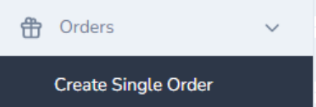
Orders>Crew Single Order
All fields in RED are required fields
Under Deliver, please select service 3PL TO ARRANGE as we will be organising the transport
A full list of your products should appear on the right-hand side of the page, you can use the search bar to find our selected product

Use the 'Add' button to select the product for your order
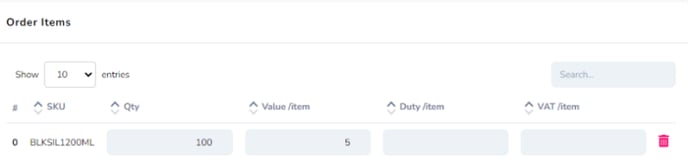
This should then appear under the 'Order Items' section, here you will need to add the quantity and the cost price of this shipment
If your order requires a specific expiry date to be picked, you can add a special condition
Use the drop-down menus to select the type, condition and date
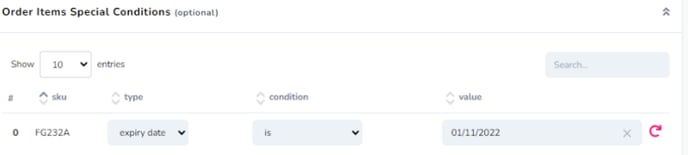
Once completed, please select 'Submit Order' to upload your order to the system

View Orders
Open Fusion toolbar

Orders>View Orders
You can view all your shipped orders from a selected date range

There is also a way to view your open orders
You can also view your ordes by status
Order Status
Data Received - the order is in our system but has not been released to pick yet
Awaiting Pick - the order has been released to pick
Being Picked - the order is currently being picked by an operative
Awaiting Pack - the order has been picked and is awaiting packing
Awaiting Collection - the order has been packed and is awaiting carrier collection
Amending Products on Orders
If you need to amend the products on an order, you will need to search the order number in Fusion on the below:

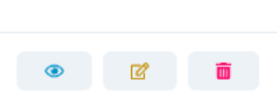
This will bring up the order with the below icons:
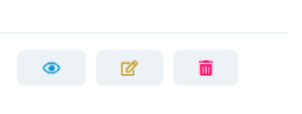
If the middle icon is available, then you can amend the lines on the order. You can complete this by pressing the icon and the order will appear where you can make any changes necessary and then confirming the change by selecting the 'Update Order' button.
If you need to amend the service on an order which has not been packed, can you amend this by again searching the order number as the above and then selecting the blue eye icon to see the below:
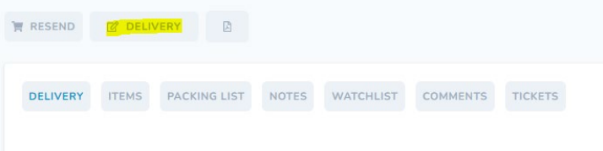
If you then select the tab highlighted yellow, it will allow you to make any necessary changes to the delivery of the order before this is shipped to your customer.
Once completed, please select the update order button as before to confirm the changes
Cancelling Order
If you need to cancel an order, you will need to search the Fusion order number and select the red bin icon
It will bring up the below screen where you can cancel as per the below:
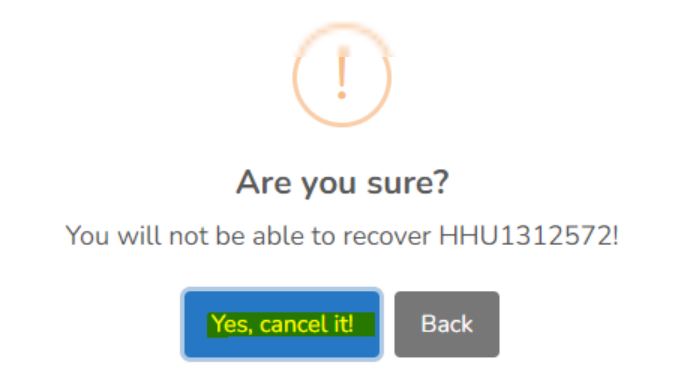
If the order has already been released to pick, it cannot be cancelled but you can still stop this from going out by amending the delivery service as per the above to 'Return to stock' this will alert the team to take this order up to returns once completed to be processed by the returns team.
Amending the Address on an Order
If you need to amend the address on an order, this can be done on any order until it is in an 'Awaiting Shipping' status with a tracking number assigned. you will need to search the order number in Fusion on the below:
Click on the 'eye' icon to bring up the order details

At the top of the right hand side of the page, select the 'Delivery' button, which once hovered over states 'Update Address/Service'

Update any address details or services as you wish, and make sure to click 'Update' at the bottom of the page to save any changes