![3PL Logo White.png]](https://kb.3p-logistics.co.uk/hs-fs/hubfs/3PL%20Logo%20White.png?height=40&name=3PL%20Logo%20White.png)
Creating Single GRN
Open the Fusion Toolbar

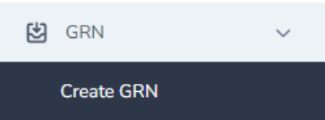
GRN>Create GRN
All fields in RED are mandatory
Search products within Fusion and add them to the GRN using the 'Add' button on the product tile

Enter the quantities of the products which we will be receiving
Press the blue Create GRN button

You will receive a notification in the top right of the screen to confirm that the upload has been successful
Creating BULK GRN
Open the Fusion Toolbar
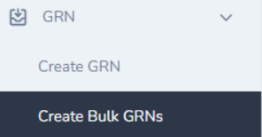
GRN>Crew Bulk GRN
Download the template and fill it in as per instructions

Save completed document and drag and drop the file in the required field

Press blue Create Bulk GRNs button to upload

You will receive a notification in the top right of the screen to confirm that the upload has been successful
View GRN
Open the Fusion Toolbar
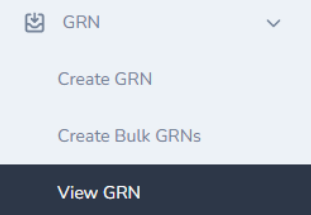
GRN>View GRN
You can view the progress of a GRN from within this tab
You can search a GRN reference in the search bar on the right of the page or select one of the tabs

Open - we have not yet received this
In Progress - we have these and are working to put them away
Closed - we have completed these and the expected vs received should be available for you to keep a record of what we have received from your supplier
Edit GRN
Fusion Toolbar>GRN>View GRN
Search GRN reference from list or select from the list of open GRNs
 If you select this icon, this will allow you to make any necessary changes to the GRN, such as for example amending the quantity
Select the Update GRN button at the bottom of the page to confirm your changes
You can edit a GRN up until we receive your inbound, but be sure to update your inbound booking if the quantity of cartons, pallets or vehicle type changes.
Delete GRN
Fusion Toolbar>GRN>View GRN
Search GRN reference from list or select from the list of open GRNs

If you then select the red bin icon, this will allow you to delete a GRN
Please note, you can only cancel GRNs which have not been marked as arrived at 3PL. If an error occurs on an inbound which has been marked as received this would need to be raised to Customer Service to liaise with operations on your behalf