![3PL Logo White.png]](https://kb.3p-logistics.co.uk/hs-fs/hubfs/3PL%20Logo%20White.png?height=40&name=3PL%20Logo%20White.png)
Products - Creating a single product
Open the Fusion Toolbar

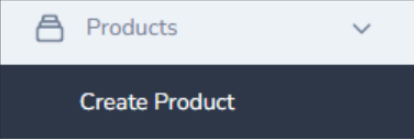
Products > Create Product
All fields in RED are a required field
Option to capture expiry date, serial number and batch codes

These operate by enabling the toggle against the data which you would like to be captured

Create product button

You will receive a notification in the top right of the screen to confirm that the upload has been successful
Create Bulk Product - Uploading Multiple Products at Once
Open the Fusion Toolbar
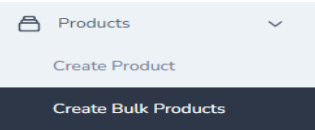
Products > Create Bulk Products
Download the template

Blue fields explain how to format this document so that it is correctly picked up by our system

Drag and drop the file/browse

Create Bulk Products button

You will receive a notification in the top right of the screen to confirm the upload has been successful
Adding Alternative Barcodes
Open the Fusion Toolbar
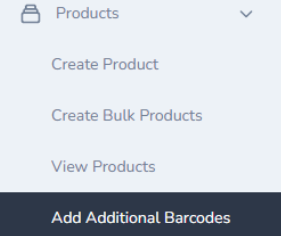
Products>Add Additional Barcodes
Barcode Type : Two options, additional barcode and outer barcode
Alt barcode example EU and US barcode on the product, would allow us to scan either and still identify the SKU
Outer barcode could be on the carton of the product and allows us to identify what is inside, and also pick by carton if necessary
Once all fields have been filled out, press 'Create' button

View Products
Open the Fusion Toolbar
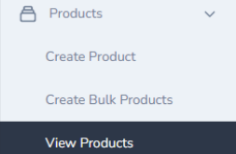
Products>View Products
Table/Grid View

Eye Icon - View details

Notebook - Update product

Status
Green - Good Stock - this stock is available to go out on orders
Yellow - Good - Check - this is here, but requires a further check by a member of the Stock Team
Purple - QA - Quality Assurance
Amber - Held - this stock has been held and cannot be used against orders; this is usually at the Owner's request
Orange - Stock Query - there is an issue with the stock which requires investigating, for example the barcode scans as a different product
Red - Damaged - this stock has been flagged as damaged, usually this will mean that it is not sellable to your customer
Stock Reports
To see live inventory - Toolbar>Products>View Products>Export in desired format. All stock reports on Fusion is live data every time the page is refreshed
To see adjustments - Toolbar>Reports>Stock Adjustment>Input Date Range>Get Report
To see stock movements - Toolbar>Reports>Stock Movements Summary>Insert SKU>Insert Date Range>Search
To see oldest SKU - Toolbar>Reports>Oldest Stock
Open the Fusion Toolbar
Products > Create Product
All fields in RED are a required fields
Option to capture expiry date, serial number and batch codes
These operate by enabling the toggle against the data which you would like to be captured. Please ensure these are only toggled if necessary, as they could slow down any inbound or outbound process where it requires their capture
Create product button
You will receive a notification in the top right of the screen to confirm that the upload has been successful