![3PL Logo White.png]](https://kb.3p-logistics.co.uk/hs-fs/hubfs/3PL%20Logo%20White.png?height=40&name=3PL%20Logo%20White.png)
The Create Bulk Orders feature in Fusion allows you to upload multiple orders at once using a structured spreadsheet template. This method is ideal for customers managing high volumes of daily shipments, retail drops, or order batches generated from ERP systems. By uploading your data in bulk, you save time, reduce manual entry errors, and streamline your fulfilment process with 3PL UK.
Navigation Flow
Toolbar → Orders → Create Bulk Orders
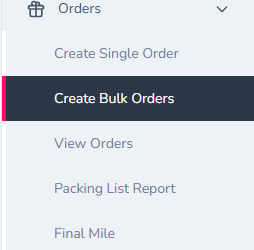
From the Fusion toolbar:
- Click on Orders
- Select Create Bulk Orders from the dropdown menu
- You will be directed to the Bulk Order upload screen.
Step 1: Download Template
At the top of the page, you will see a bright yellow button labelled “Download Template”
Clicking this button will download the official 3PL UK Bulk Order Excel template.

This template is specifically formatted to work with the Fusion platform and includes all necessary headers, validation fields, and notes to help you correctly prepare your bulk order file.
What the Template Includes:
- Pre-set column headers: Required fields such as order number, delivery address, SKUs, quantities, and service type.
- Instructional guidance in blue text: Immediately beneath the Download Template button, you’ll find a list of key instructions displayed in blue. These guidelines are essential for ensuring your spreadsheet is completed correctly before uploading. Please take a moment to read them thoroughly before filling out the template.
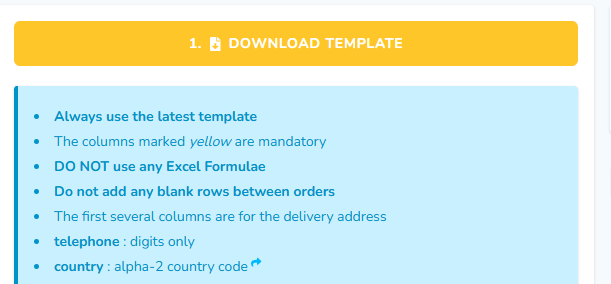
A full list of bulk upload guidelines is available directly within Fusion, displayed just beneath the Download Template button. We strongly recommend reviewing these instructions before preparing your file to ensure your data is formatted correctly and meets all system requirements.
Viewing Available Delivery Services
Located just below the instructional guidance of the Download Template you’ll see a button labelled SHOW SERVICES.
Clicking this will display a full list of the delivery service codes currently available for use.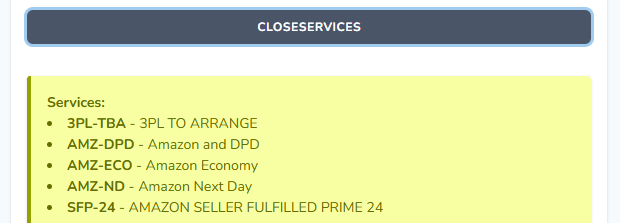
These service codes are what you will use in the “Service” column of the bulk order template, and they determine how 3PL UK will manage the dispatch of each order.
This view can be toggled closed again using the CLOSE SERVICES button.
Note: For the most accurate and up-to-date explanation of each service, including carrier handling and cut-off times, please refer to the full service reference guide within Fusion or contact your account manager. - System-ready formatting: The layout is optimised for Fusion’s validation rules, no need to adjust spacing, styles, or sheet names.
- Guarantees system compatibility: Using the official template ensures your file structure is fully aligned with Fusion’s formatting rules, allowing for seamless upload and automated order creation without manual intervention.
- Minimises upload errors: The pre-configured fields and instructional notes reduce the likelihood of common mistakes such as missing data, incorrect formatting, or invalid values, ensuring your orders are accepted on the first attempt.
- Supports faster order processing: By submitting data in a structure already optimised for 3PL UK’s internal workflows, you help us move your orders swiftly from upload to fulfilment, avoiding unnecessary delays or clarification requests.
Step 2: Upload Your Completed Template
Once you have downloaded the official template and filled it out with your order data, the next step is to upload your completed file into Fusion.
You can do this using the clearly marked pink box labelled: “2. Drag & Drop the File or Browse”

How to Upload Your File:
You have two options to upload your completed spreadsheet:
- Drag and Drop: Simply click and drag your Excel file from your folder and drop it into the pink upload area.
- Browse and Select: Alternatively, click on the “Browse” link inside the pink box to open your file explorer and manually select the completed template.
Before you upload your file, please ensure the following:
- Ensure you are using the most up-to-date template provided by 3PL UK.
Older versions may contain outdated columns or formatting rules that are no longer supported by Fusion. Always download the latest version from the platform before starting your bulk upload to avoid compatibility issues. - Verify that all mandatory fields in the template are fully completed.
Mandatory fields are clearly highlighted in yellow within the spreadsheet. These fields are essential for order processing—if any are left blank or incorrectly formatted, the upload will be rejected. Double-check each row to confirm that required information such as delivery address, service type, SKU, and quantity are entered correctly. - Reminder :
If your file does not meet the template guidelines, the system will flag an error during submission. It’s always a good idea to review the instructional notes shown below the “Download Template” button before uploading.
Once your file has been uploaded successfully, you’re ready to move on to Step 3: Submit Your Bulk Orders.
Step 3: Submit Your Bulk Orders
Once you have successfully uploaded your completed template, the next and final step is to submit your file to Fusion for processing. To do this, simply click on the blue button labelled “3. Create Bulk Orders,” located on the right side of the upload section.
Fusion automatically checks that:
- The correct official 3PL template is being used
- Mandatory fields (e.g., delivery details, SKUs, quantities) are populated
- Column headers have not been altered
Note: If the button remains disabled after uploading, please double-check that your file matches the latest template format and contains no empty required fields or structural changes. If you’re still unsure, our support team is happy to help.
Once you've uploaded your completed file, clicking the blue “Create Bulk Orders” button will begin the submission process. At this stage, Fusion will automatically validate your file to ensure it meets all structural and data requirements.
- The system will check that all mandatory fields are completed, column headers are intact, and no formatting rules (such as restricted characters or missing values) are violated.
- If the file passes validation, each order will be created instantly within Fusion and entered into the fulfilment queue for processing by the 3PL UK operations team.
- Upon successful submission, a confirmation message will appear in the top-right corner of your screen, letting you know that your bulk orders have been received and are now live in the system.
If Fusion detects any issues with your uploaded file, such as missing mandatory fields, incorrect formatting, or invalid data entries, the system will automatically halt the submission process.
Here’s what will happen:
- Submission will be blocked to prevent invalid orders from entering the system.
- A clear error message will be displayed, highlighting the specific rows or fields that require attention.
- You’ll be prompted to correct and re-upload your file, ensuring that all data is valid and meets Fusion’s import criteria.
If you're unsure about the cause of the error, download the message or contact your 3PL UK account manager with a copy of the file for support.
Once your bulk order file has been accepted, all submitted orders will appear in the View Orders section, where you can monitor their status in real time.
Once your bulk orders have been successfully submitted in Fusion, they will immediately appear in the system for processing. To track the progress of these orders, make updates (where applicable), or monitor fulfilment stages, you can now proceed to the View Orders section. This is where you’ll find all open, in-progress, and completed orders, along with detailed status updates for each one.
Continue to the next step: How to View and Manage Orders in Fusion